Attach policy to group
Attach policy to CostTest group
- After creating the policy successfully. In the left menu, click IAM user groups.
- Click on the CostTest group.
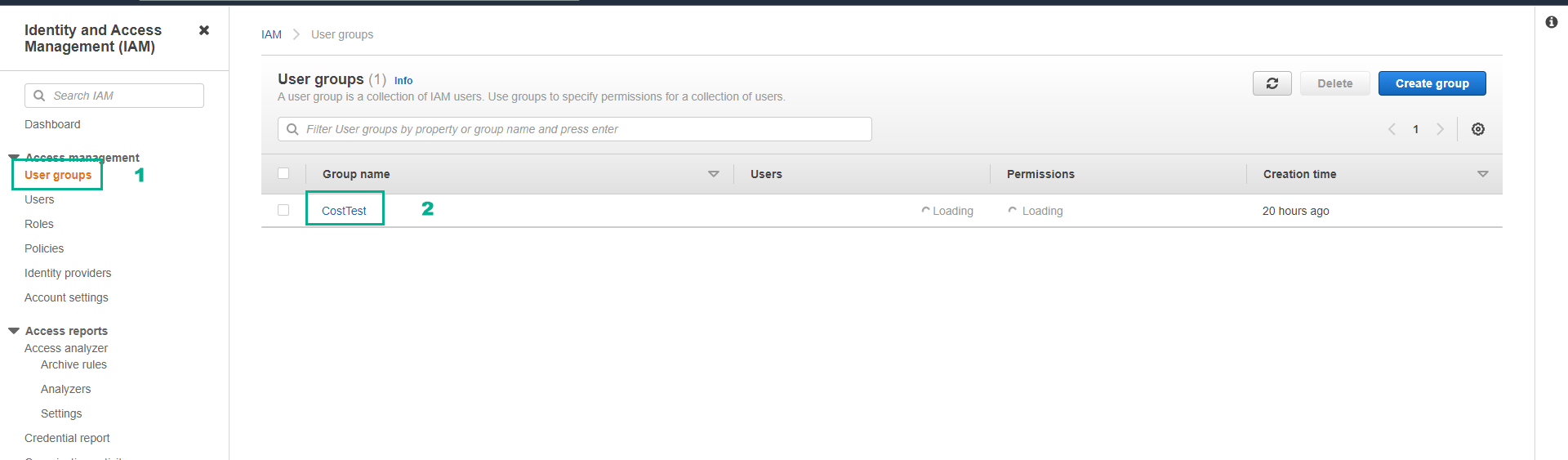
On the CostTest group page.
- Click the Permissions tab.
- Click Add permissions.
- Click Attach policies.
In the Filter by Type box, click Customer managed.
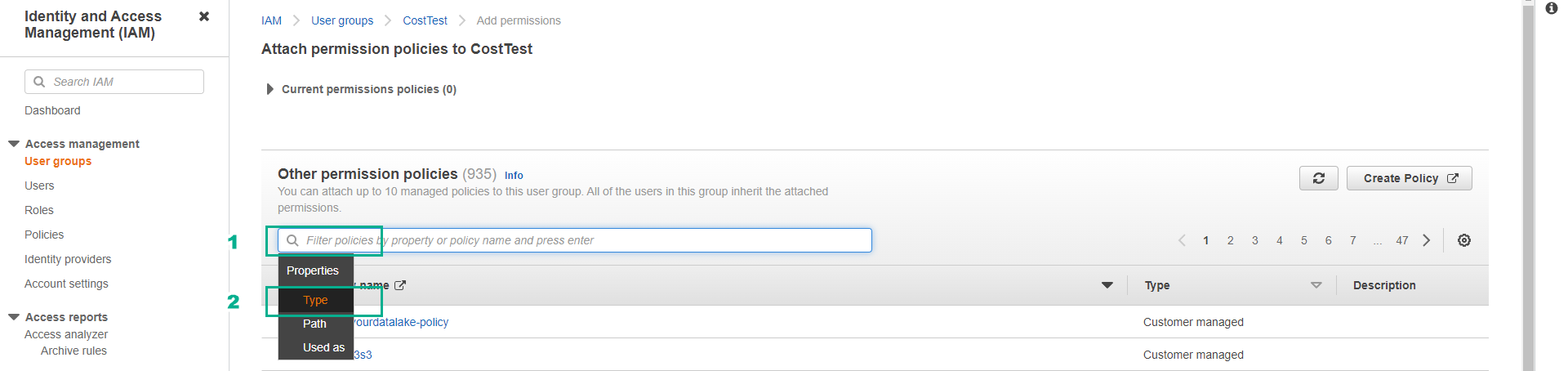
Customer managed are IAM Policies that we create and manage ourselves.
Click on the Filter box, enter the policy name we created in the previous step ( EC2_FamilyRestrict ).
- Press Enter.
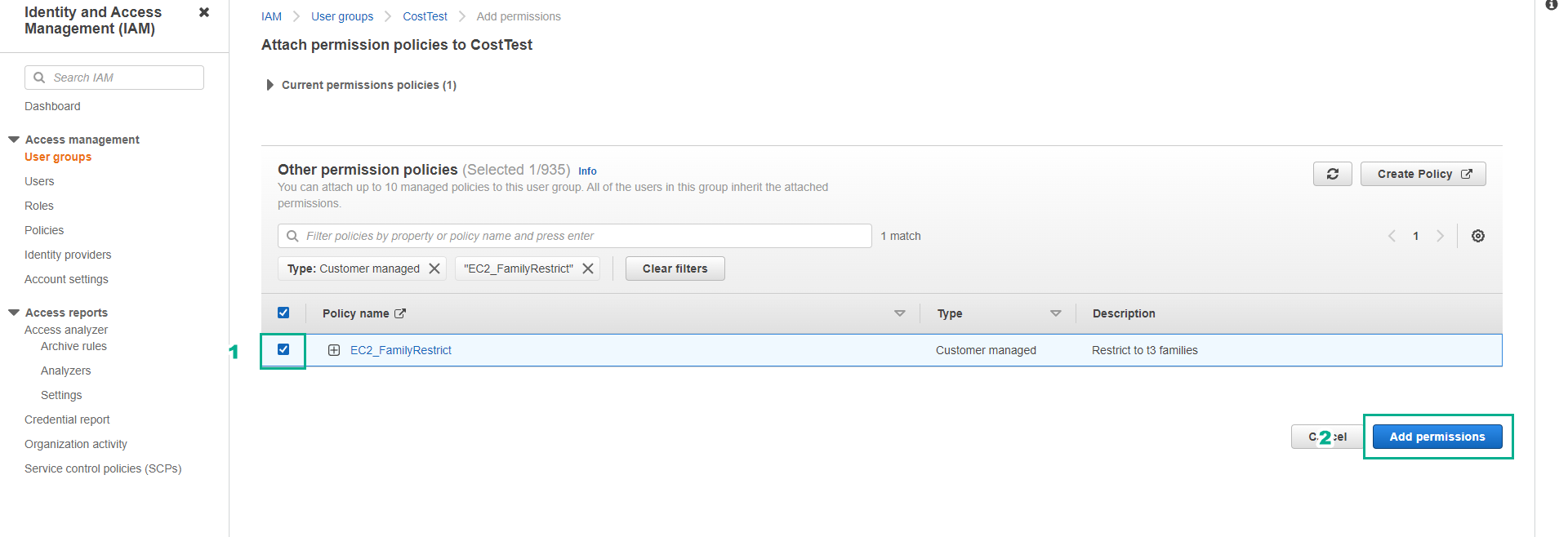
Click the checkbox next to the EC2_FamilyRestrict policy.
- Click Add permissions.
- Ensure the policy is attached successfully.
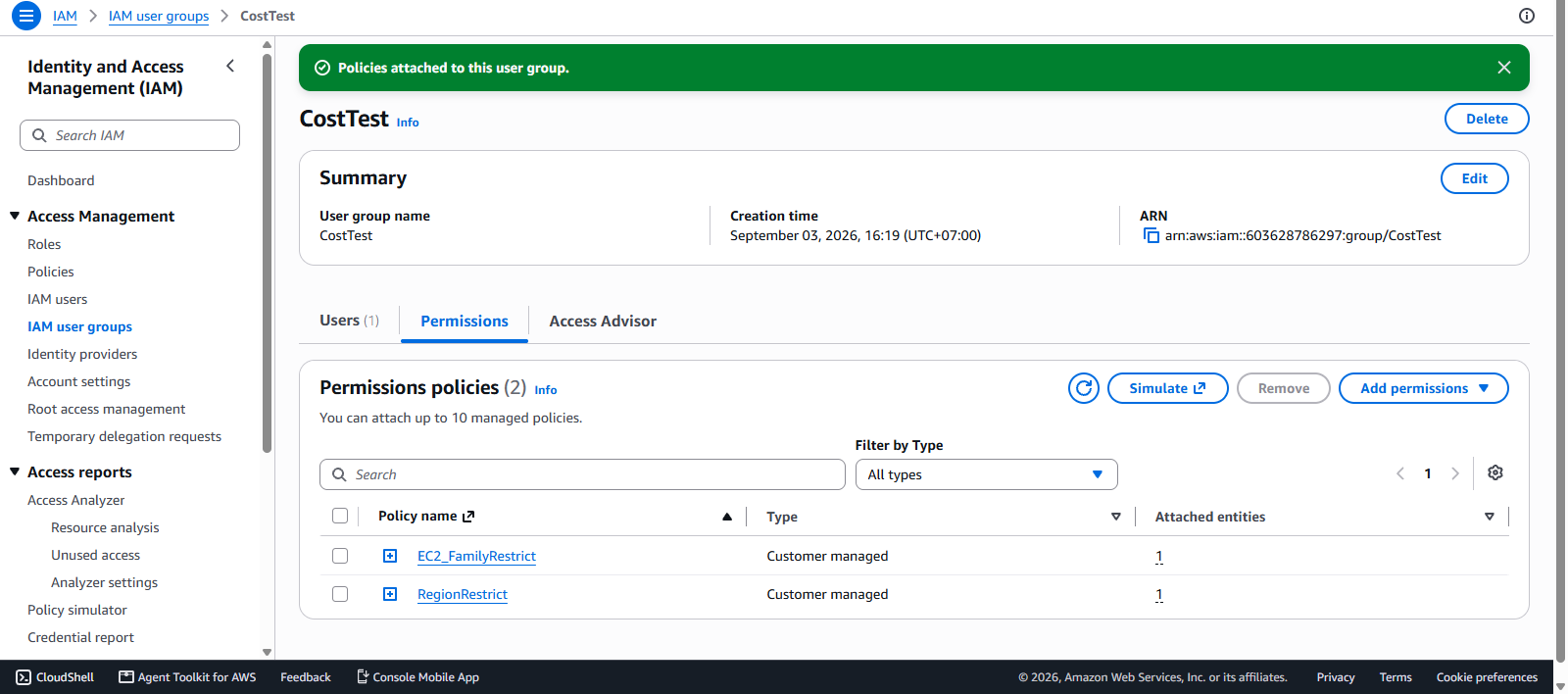
- Check the RegionRestrict policy.
- Click Remove.
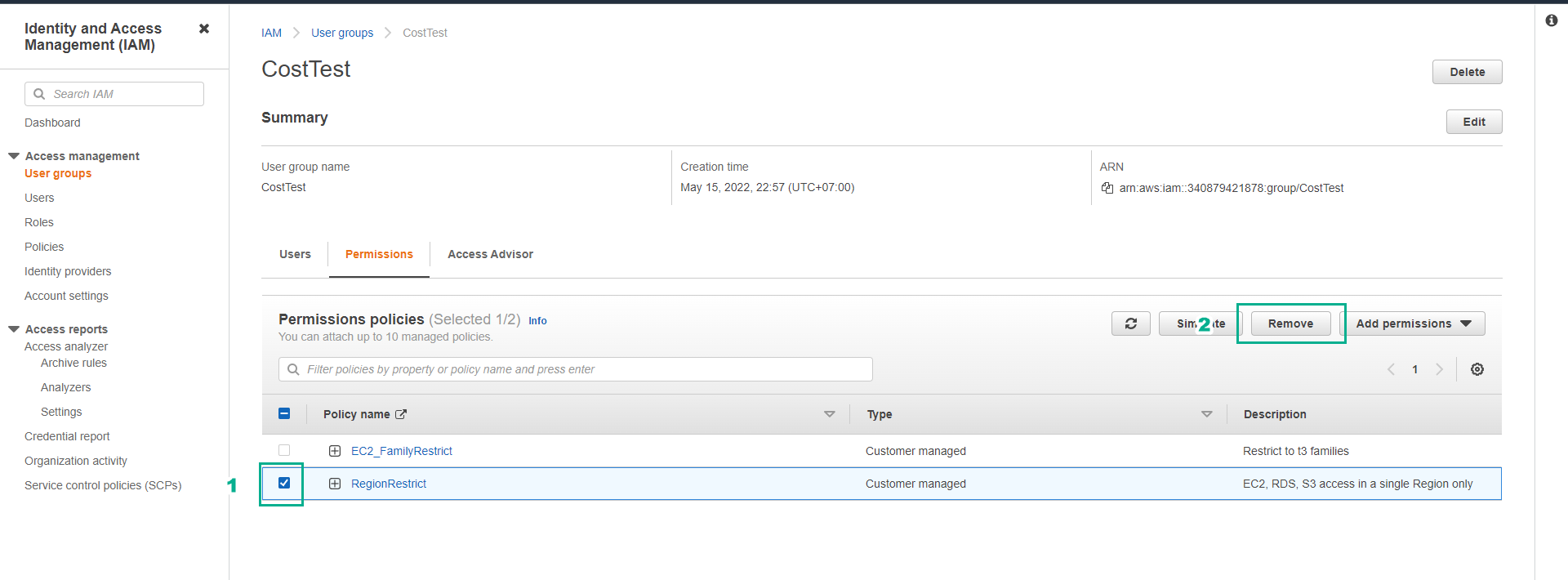
We need to remove the RegionRestrict policy because this policy provides full permissions on the EC2 service.
In the next step, we will log in with the user testuser to check if we can create an EC2 server with a family other than T3.