Create limit policy
Create policy to limit resource usage by Region
- After successfully creating the user. In the left menu, click Policies.
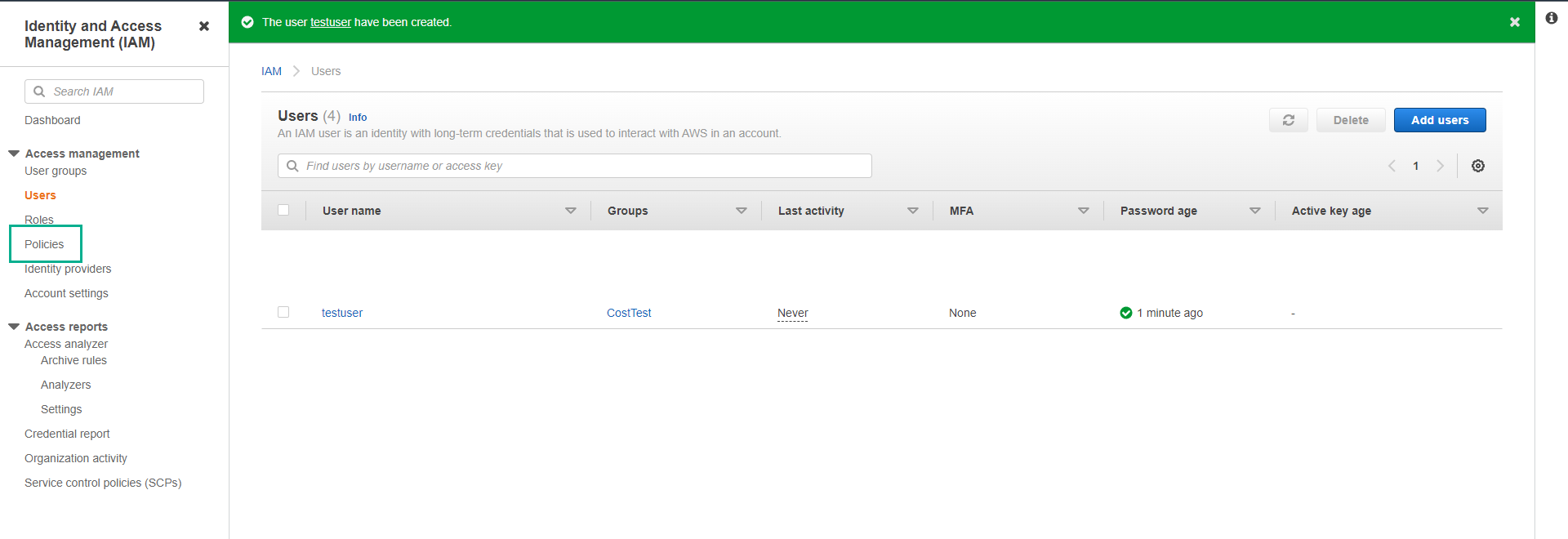
- On the Policies page.
- Click Create Policy.
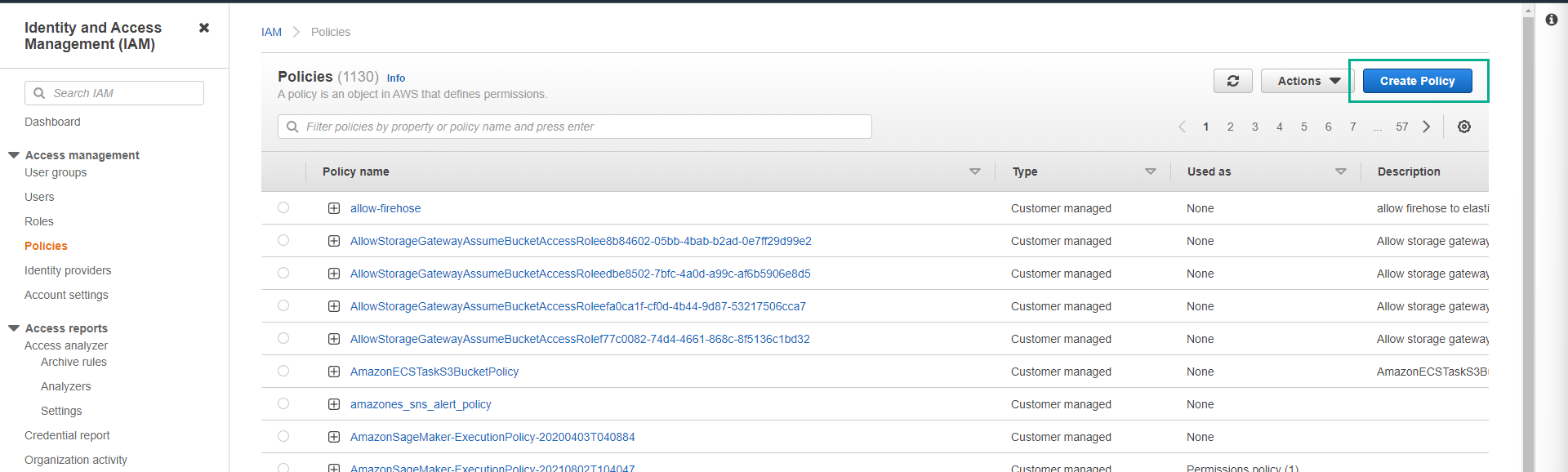
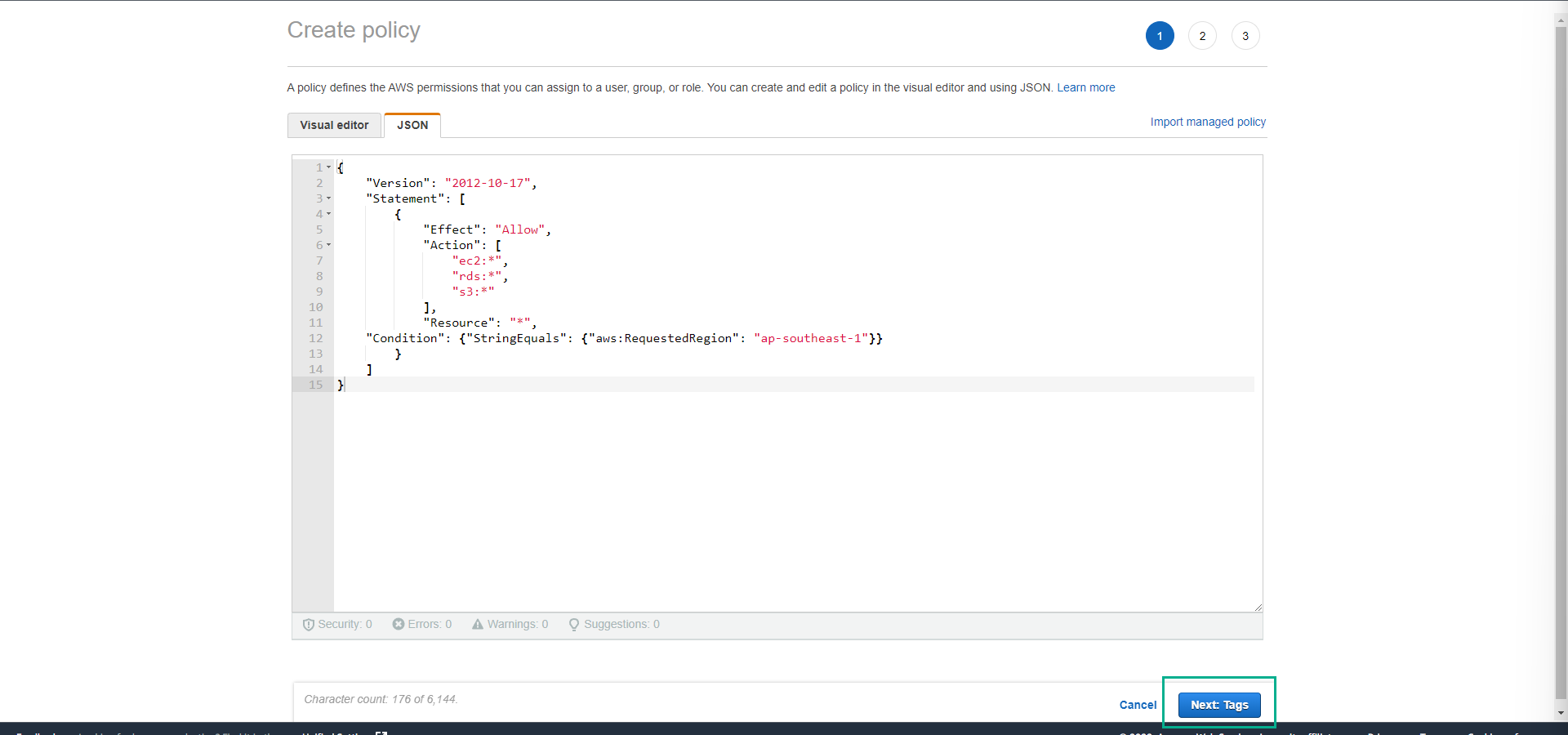
- On the Create policy page.
- Click the JSON tab.
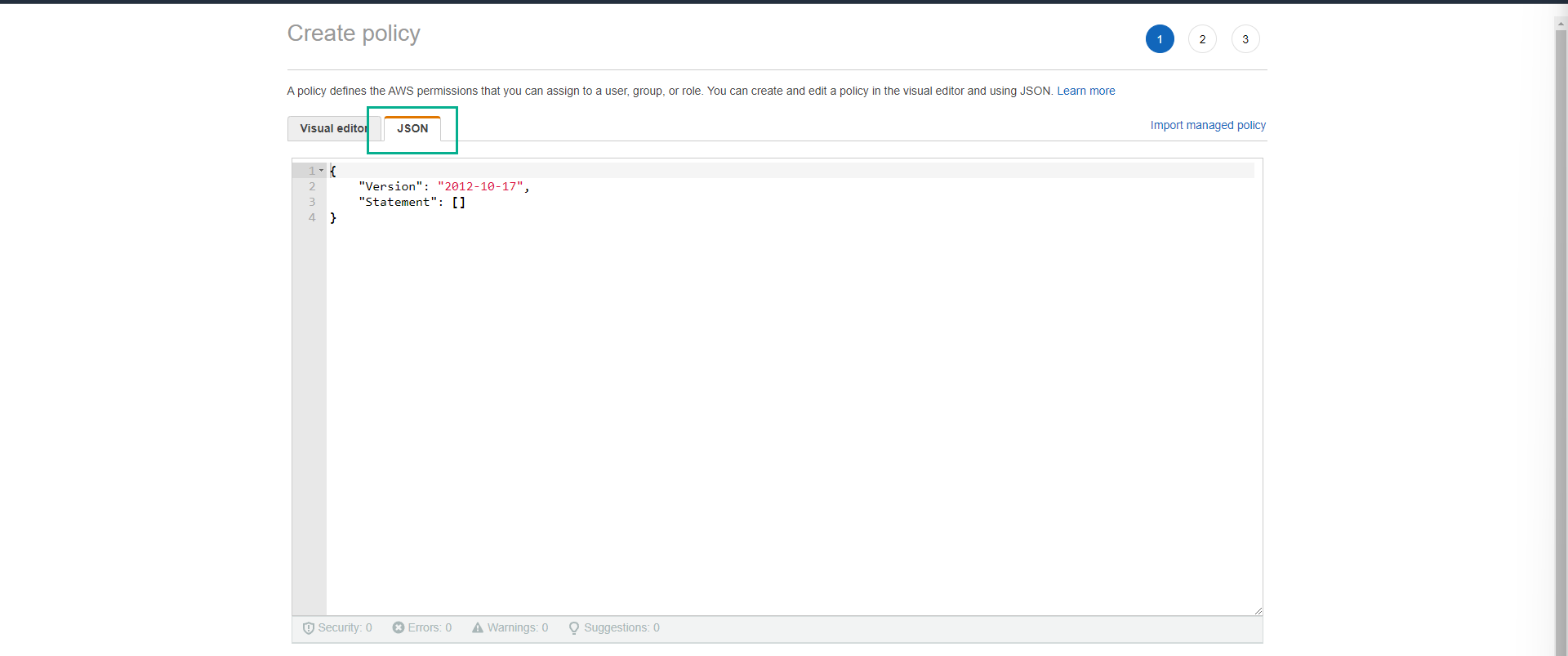
- Copy and Paste the policy content below.
{
    "Version": "2012-10-17",
    "Statement": [
        {
            "Effect": "Allow",
            "Action": [
                "ec2:*",
                "rds:*",
                "s3:*"
            ],
            "Resource": "*",
    "Condition": {"StringEquals": {"aws:RequestedRegion": "ap-southeast-1"}}
        }
    ]
}
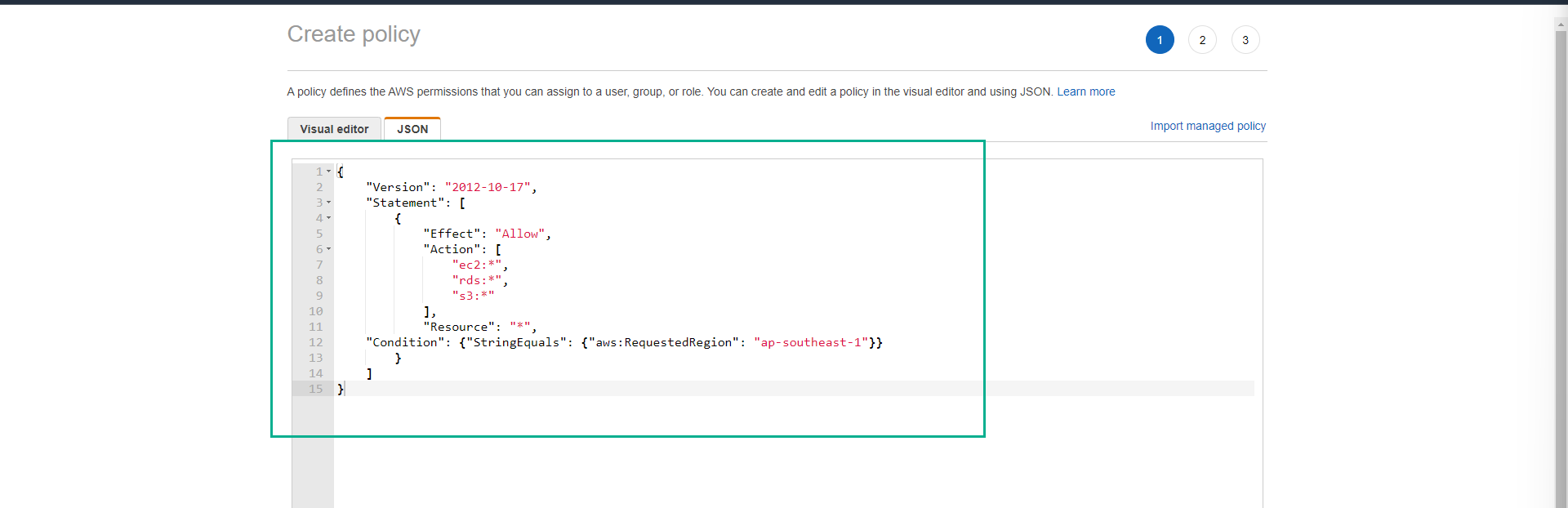
You can change the Region information in the above policy to match the Region where you want to grant permissions for EC2, RDS, and S3 services.
- Click Next.
- On the Review policy page.
- Set Name as RegionRestrict.
- Set Description as EC2, RDS, S3 access in a single Region only.
- Click Create policy.
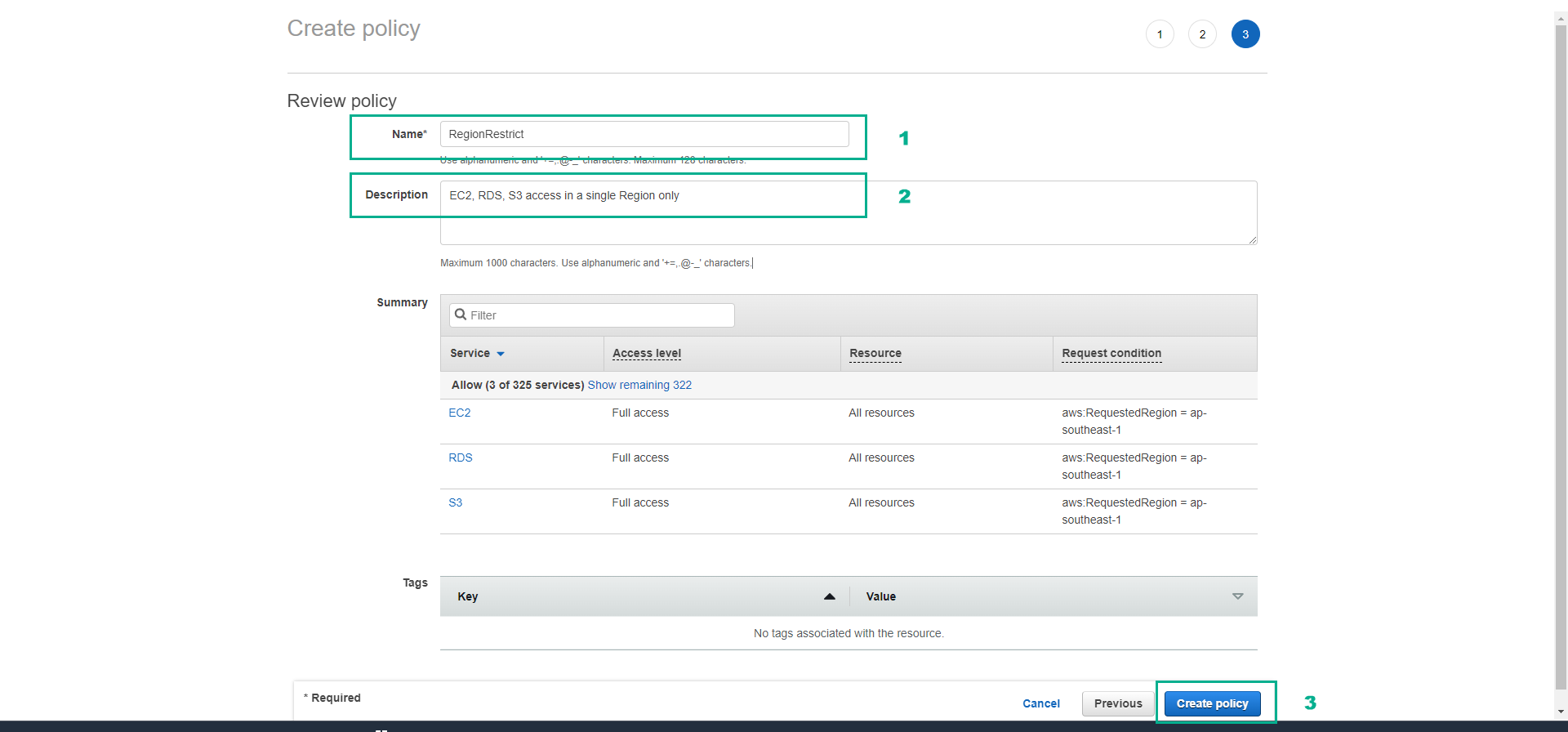
- Ensure the RegionRestrict policy is created successfully.

In the next step, we will attach the policy to the CostTest group and then test the effectiveness of this policy.