Test policy effectiveness
Test policy effectiveness by creating an EC2 instance in the allowed Region
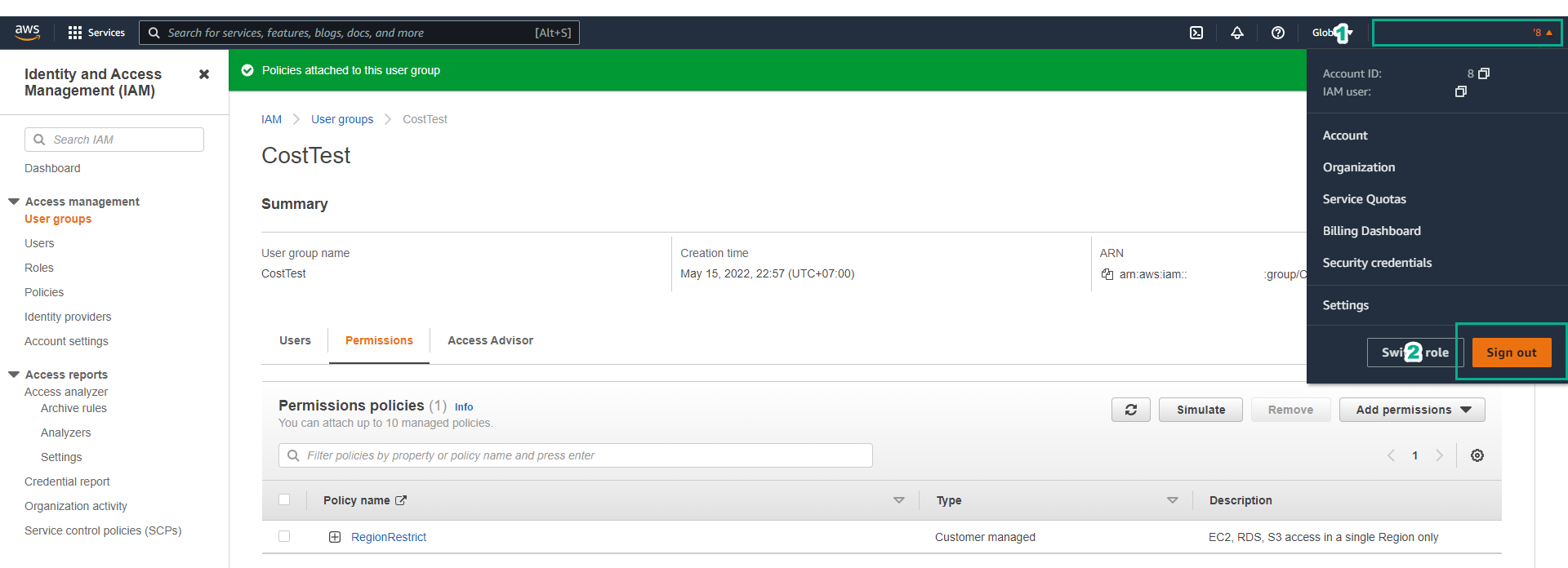
- Click on the name of the currently logged-in user.
- Click Sign out.
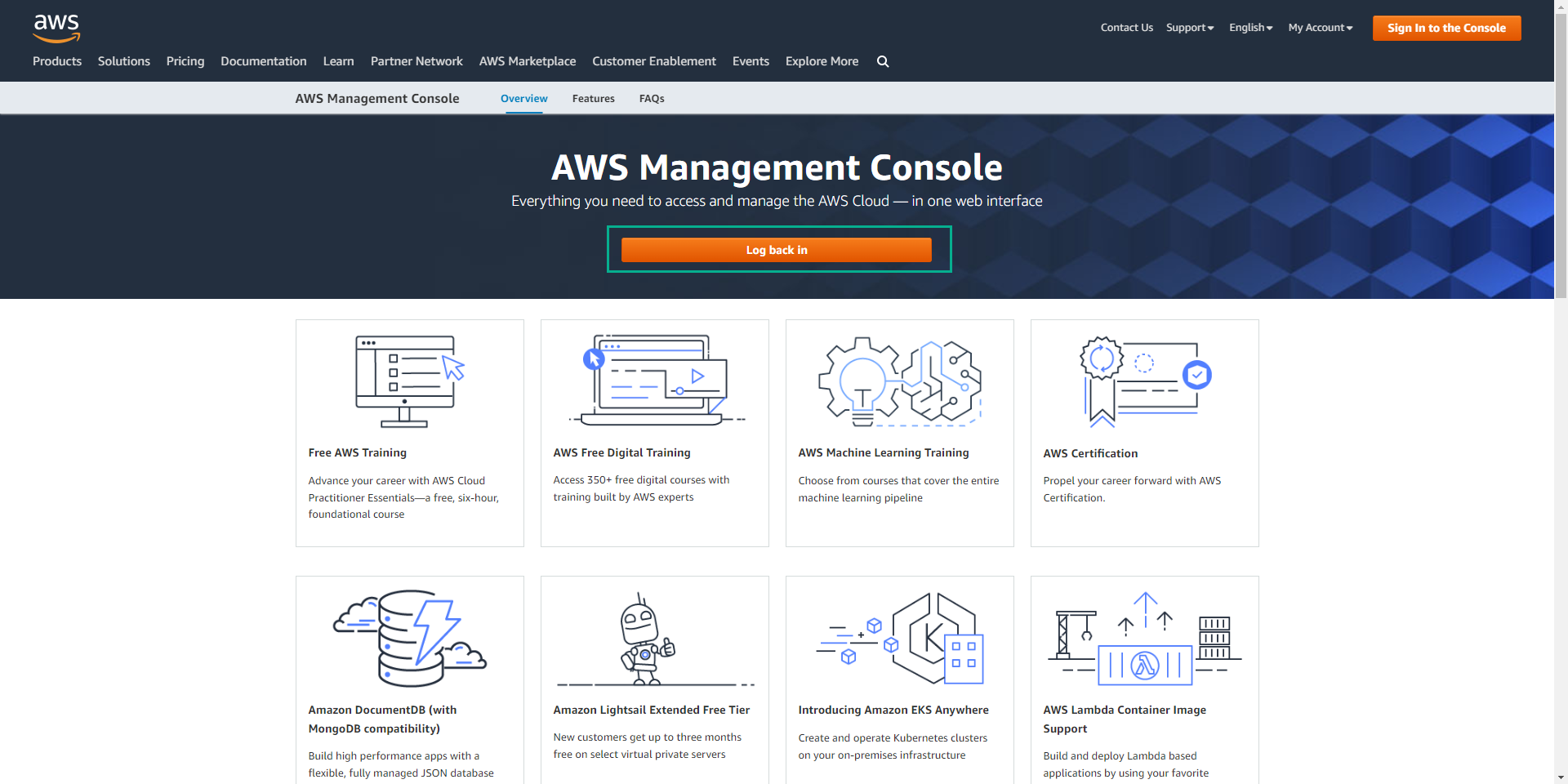
- Click Sign in to console
- At IAM user name enter the user we created (testuser).
- At Password enter the password we set (123456Aa@).
- Click Sign in.
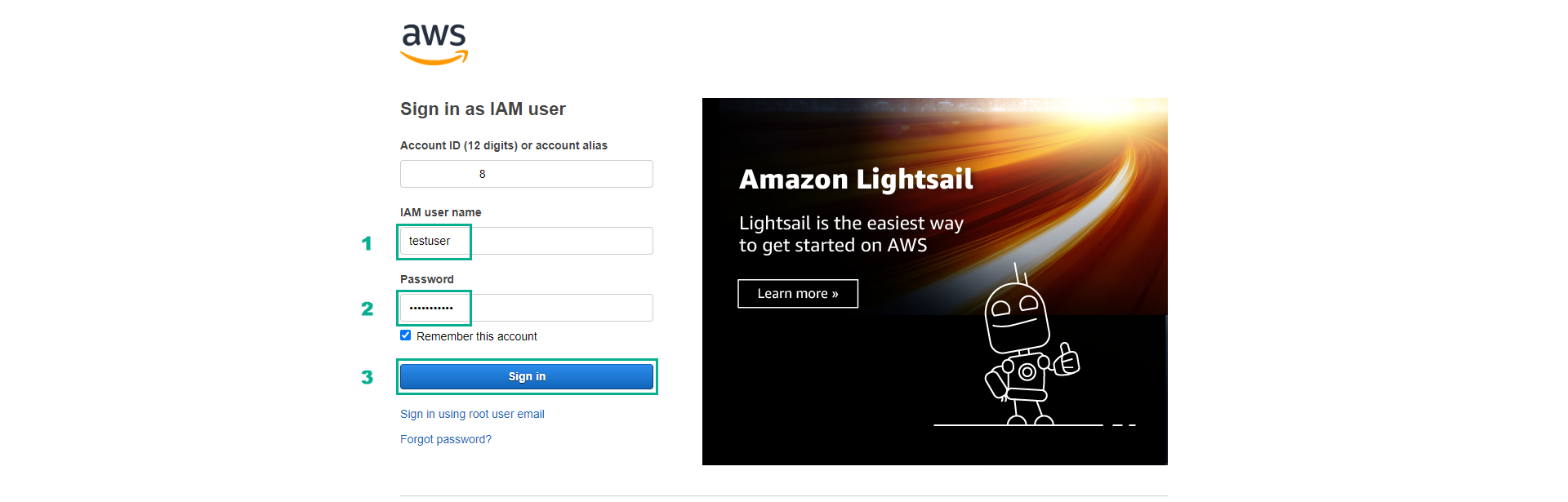
If you cannot log in successfully, please double-check the user and password information created in the previous steps. Also, make sure you use the correct AWS account ID when logging in.
- Click on the Region menu next to the logged-in user’s name.
- Click on the Region where we allowed operations for testuser in the RegionRestrict policy.
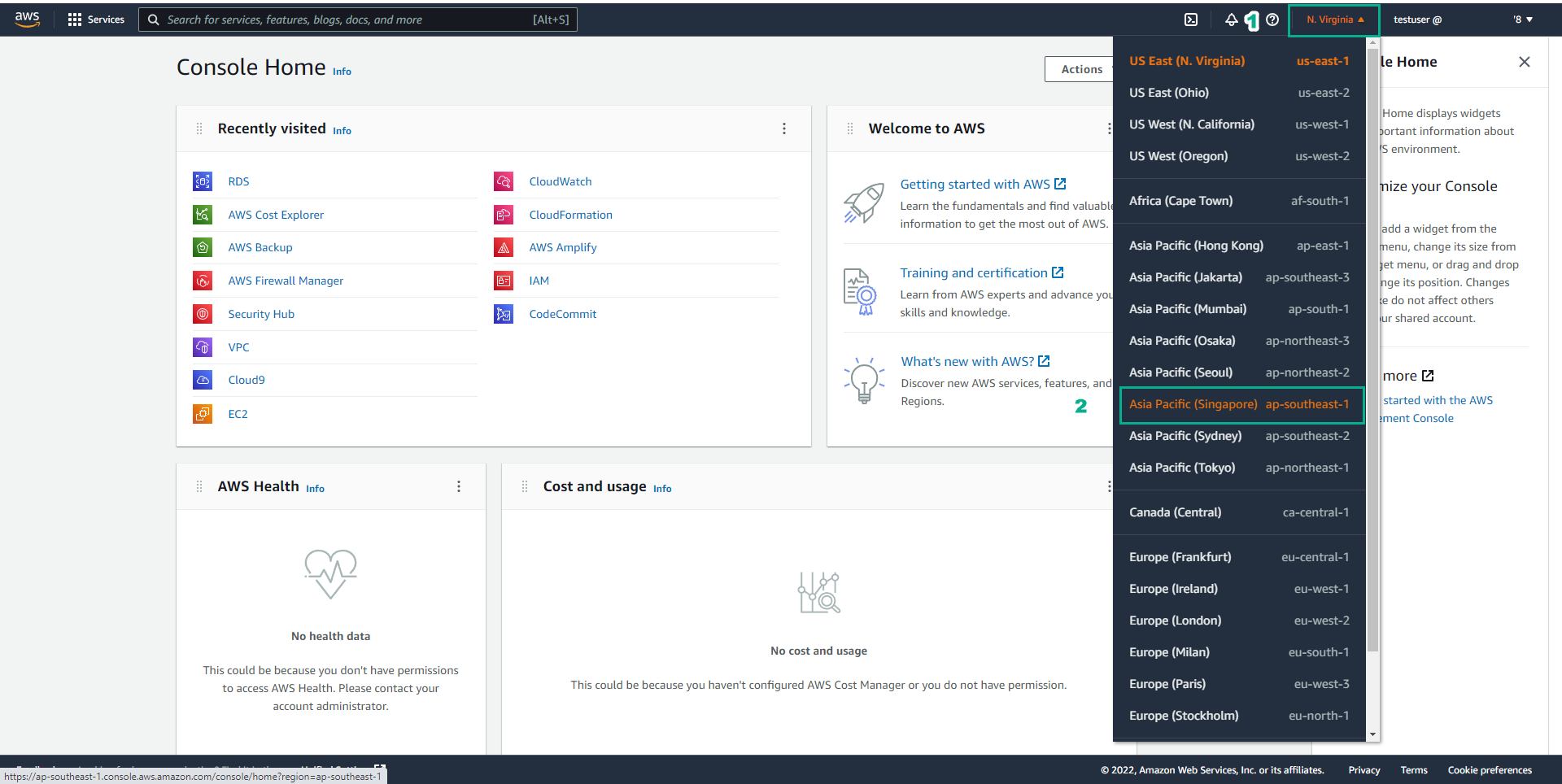
You have just performed a Region switch. After switching Regions, the resources you create will be located in the Region you are currently using.
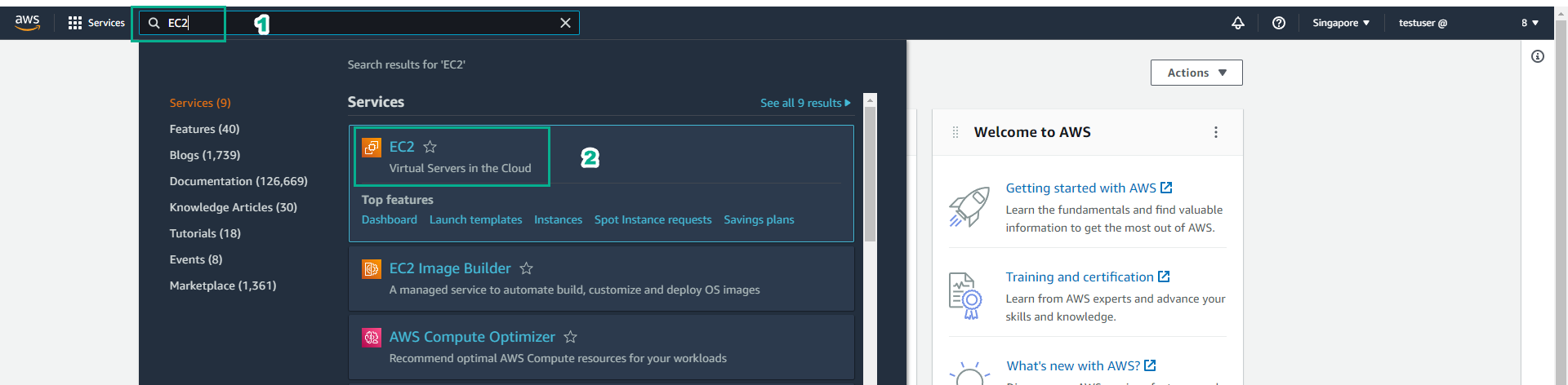
- Click on the search box, click EC2 to go to the EC2 service management console.
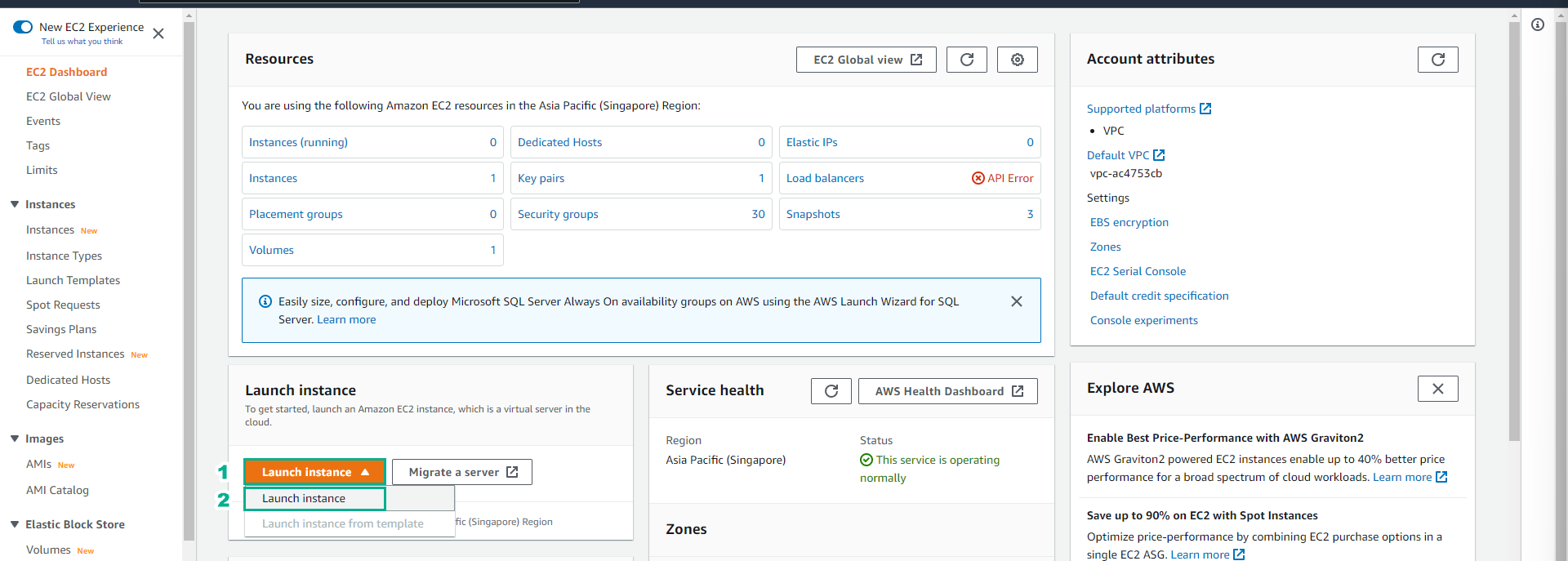
- Click Launch instance.
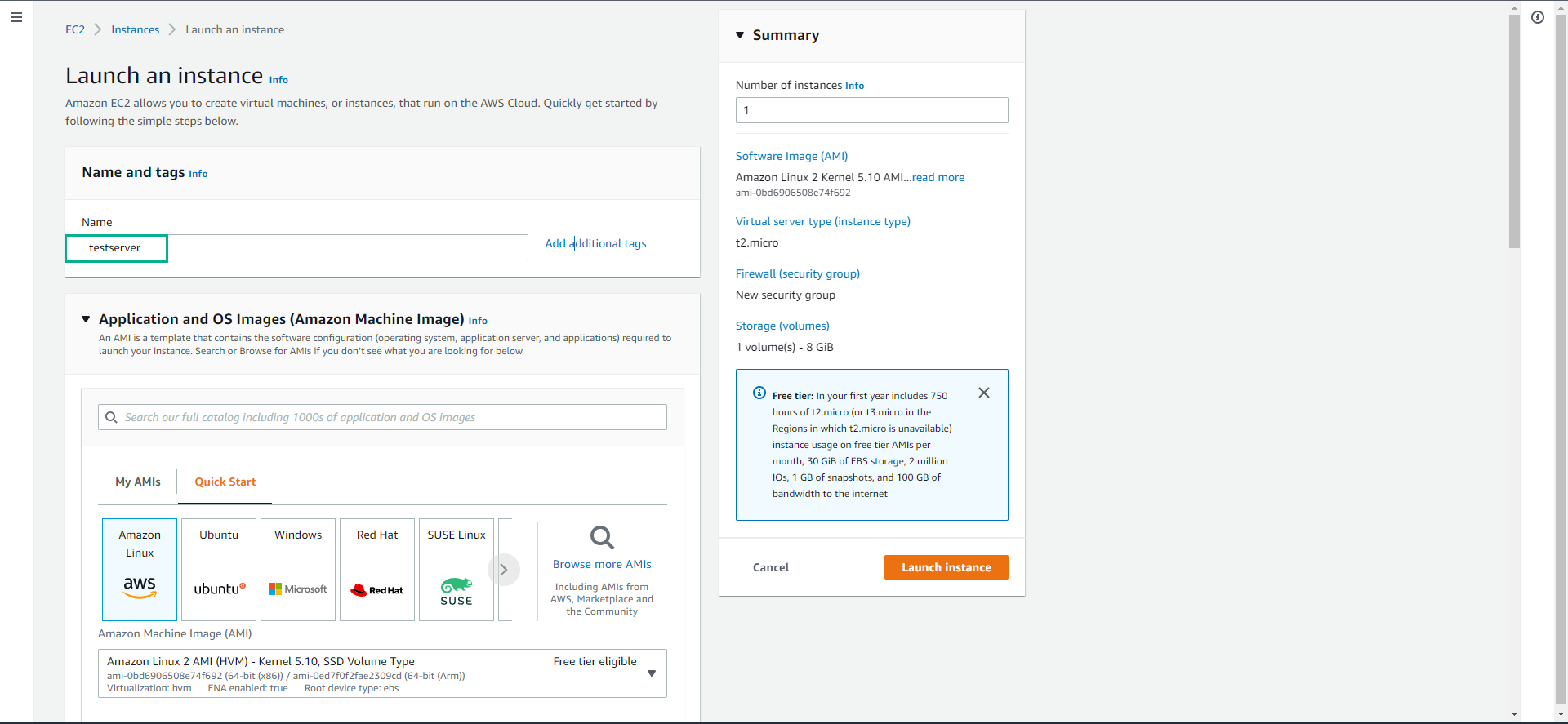
- At Name enter testserver
- At Key pair name, click on the Select box.
- Select Proceed without a key pair (Not recommended)
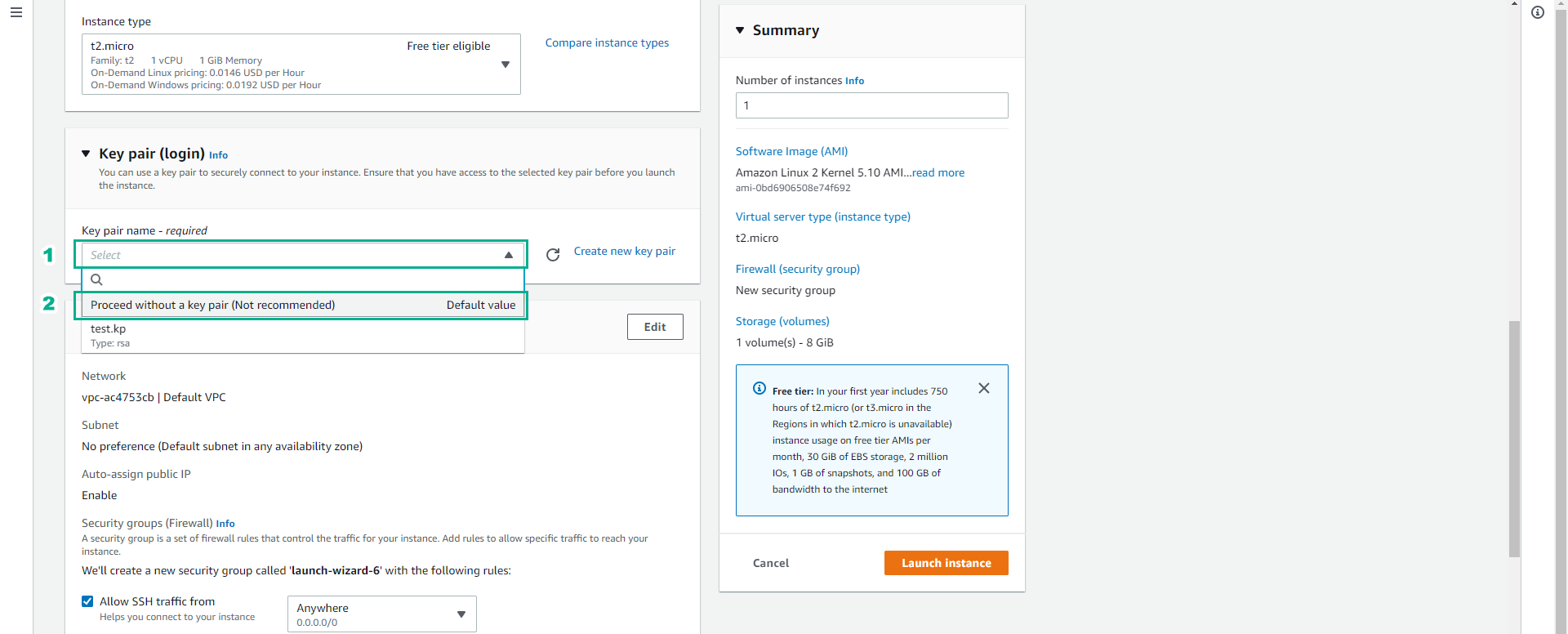
We will need a key pair to be able to connect to the EC2 instance. In this lab we only want to test the operation permissions on the service, so we will not need to connect to the EC2 instance.
- Click Launch Instance.
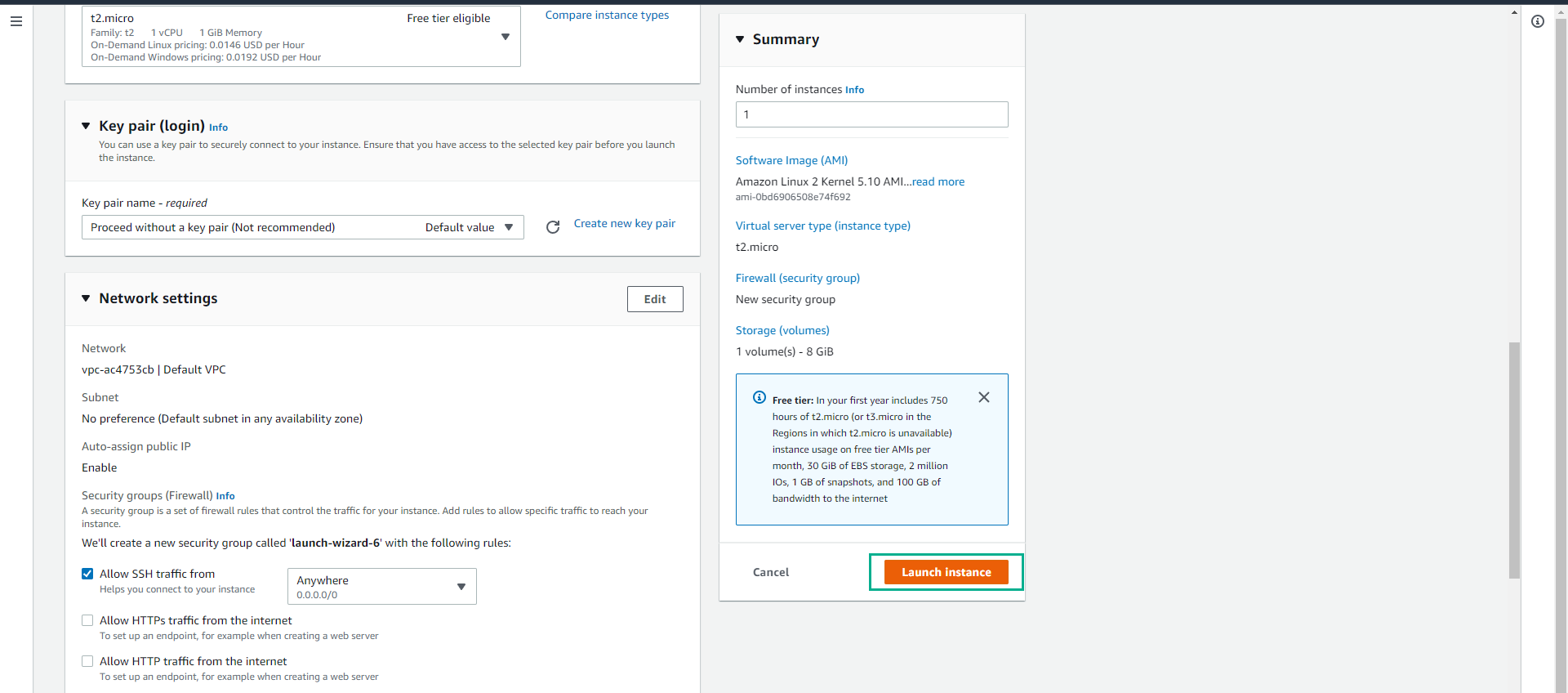
In this step, we have successfully created an EC2 instance with the instance type t3.micro in the Singapore Region. Next we will try switching to another Region to test whether we have permission to create servers in another Region.

Try creating a server in another Region
- Click on the Region menu next to the logged-in user’s name.
- Click on a Region different from the Region where we allowed operations for testuser in the RegionRestrict policy.
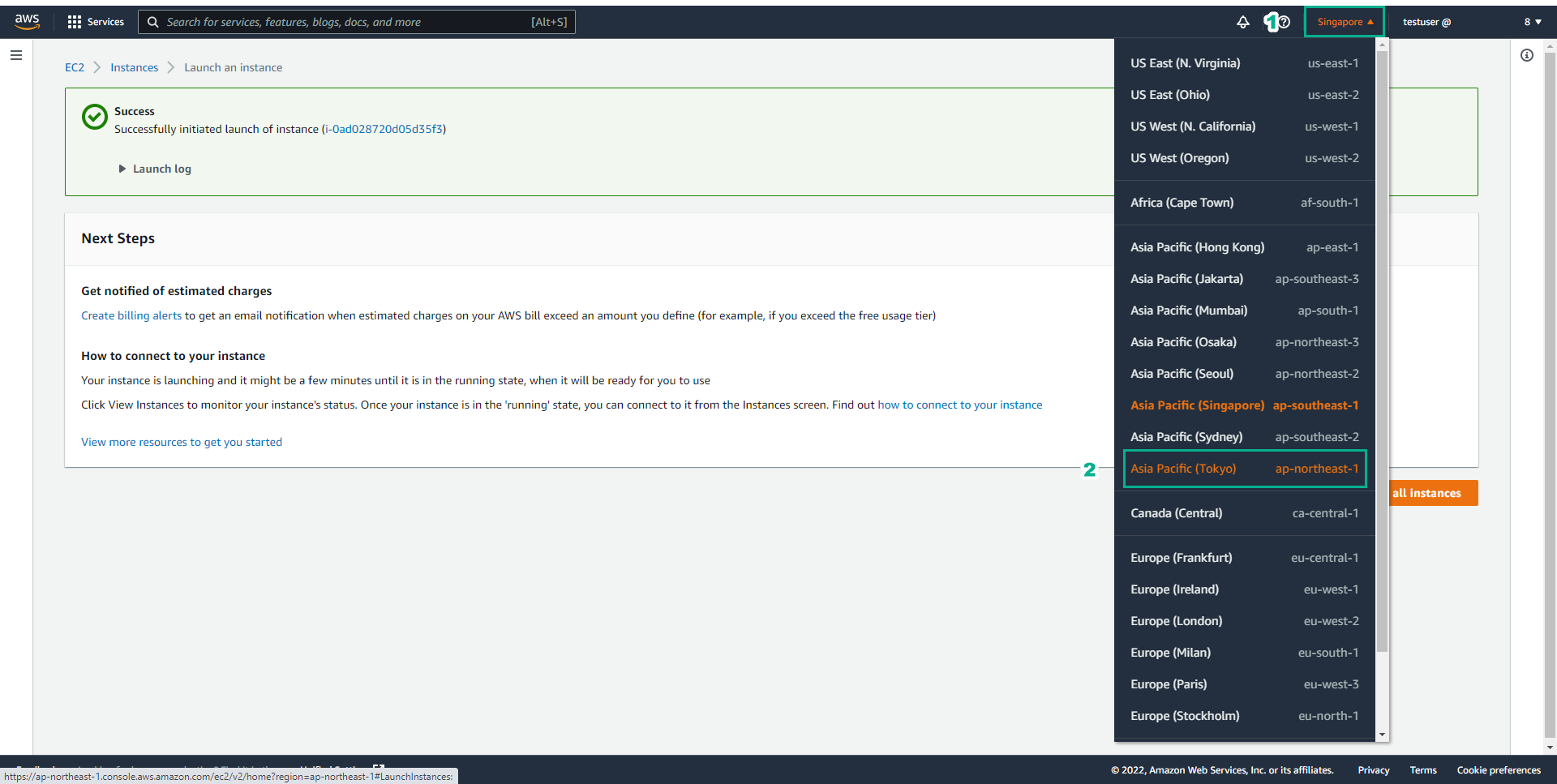
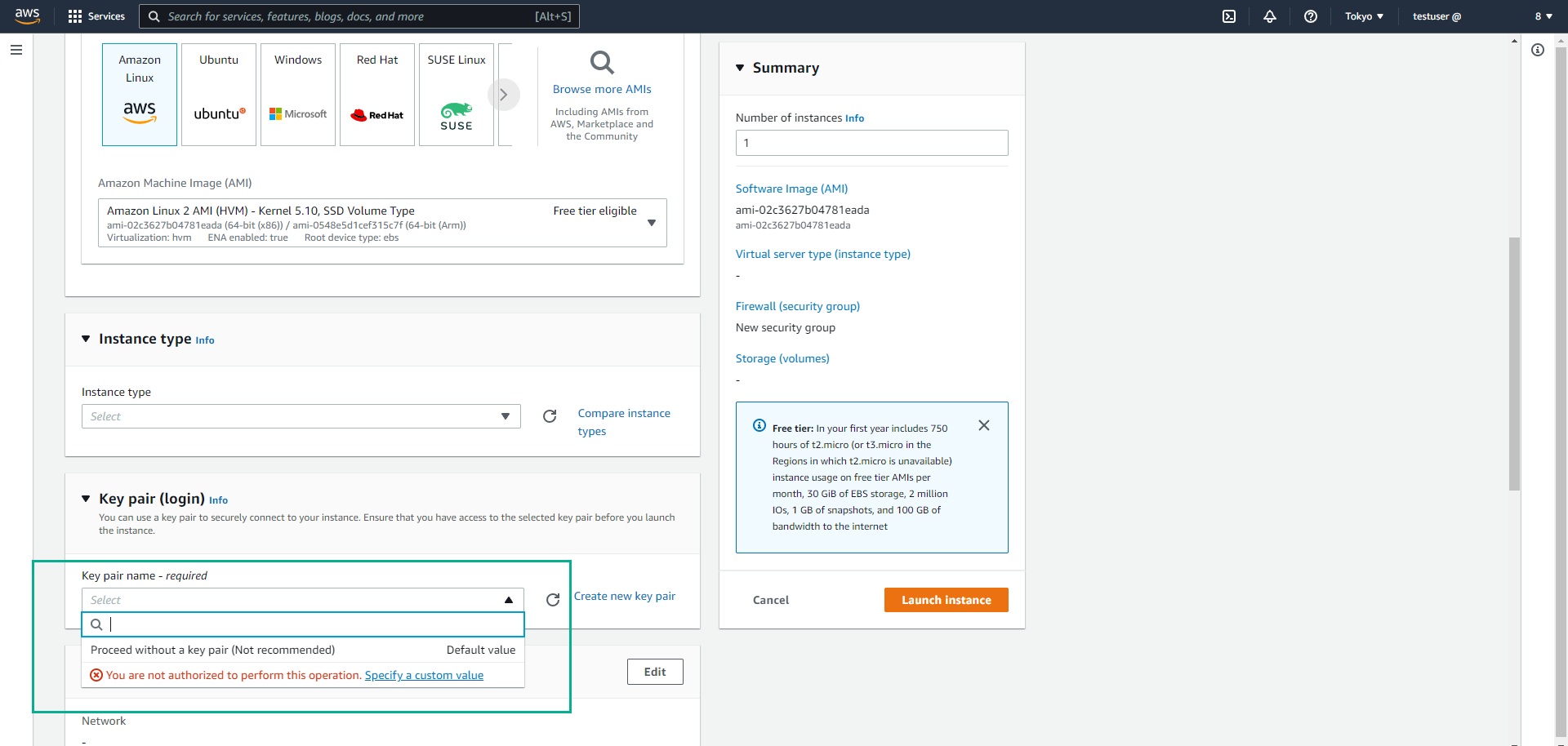
- Try the operations of setting Key pair or instance type.
- You will see that you do not have permission to create an EC2 instance in this Region.
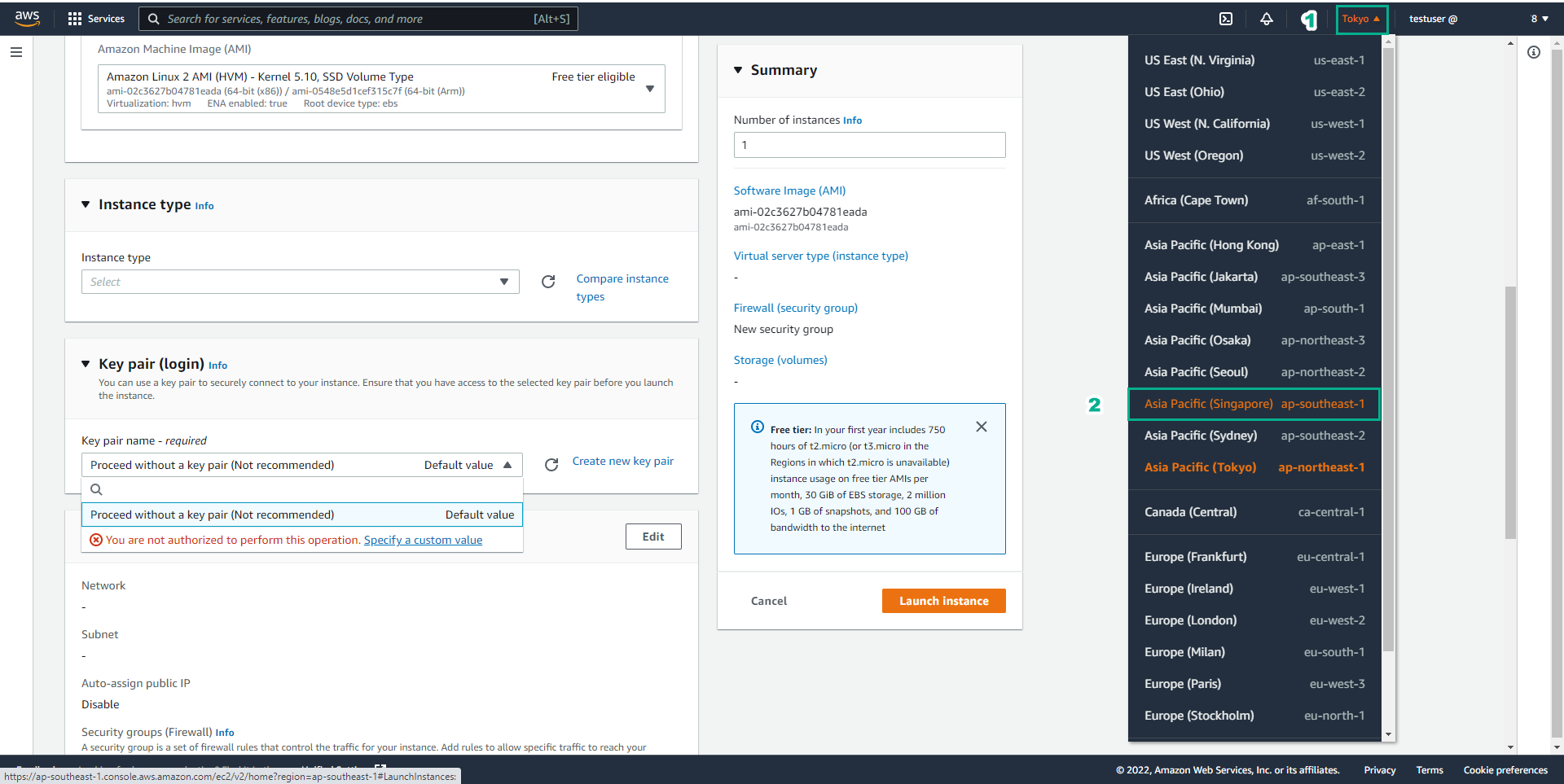
- Return to the initial Region before proceeding to the next step.
Delete the created testserver
- Verify you are in the correct initial Region.
- Click Instances.
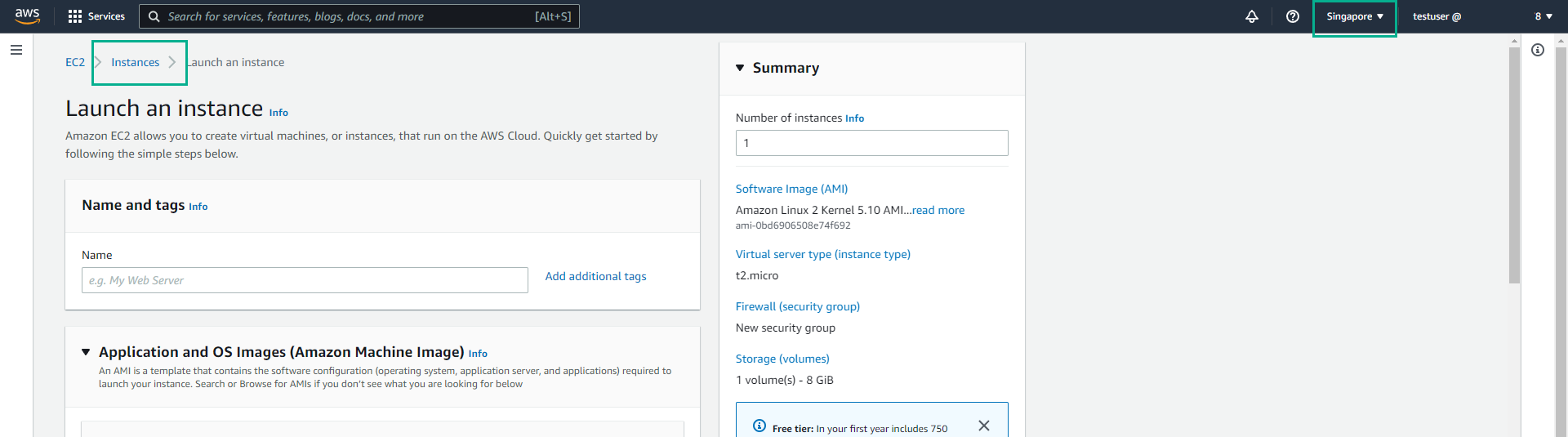
- In the list of EC2 instances.
- Click on testserver.
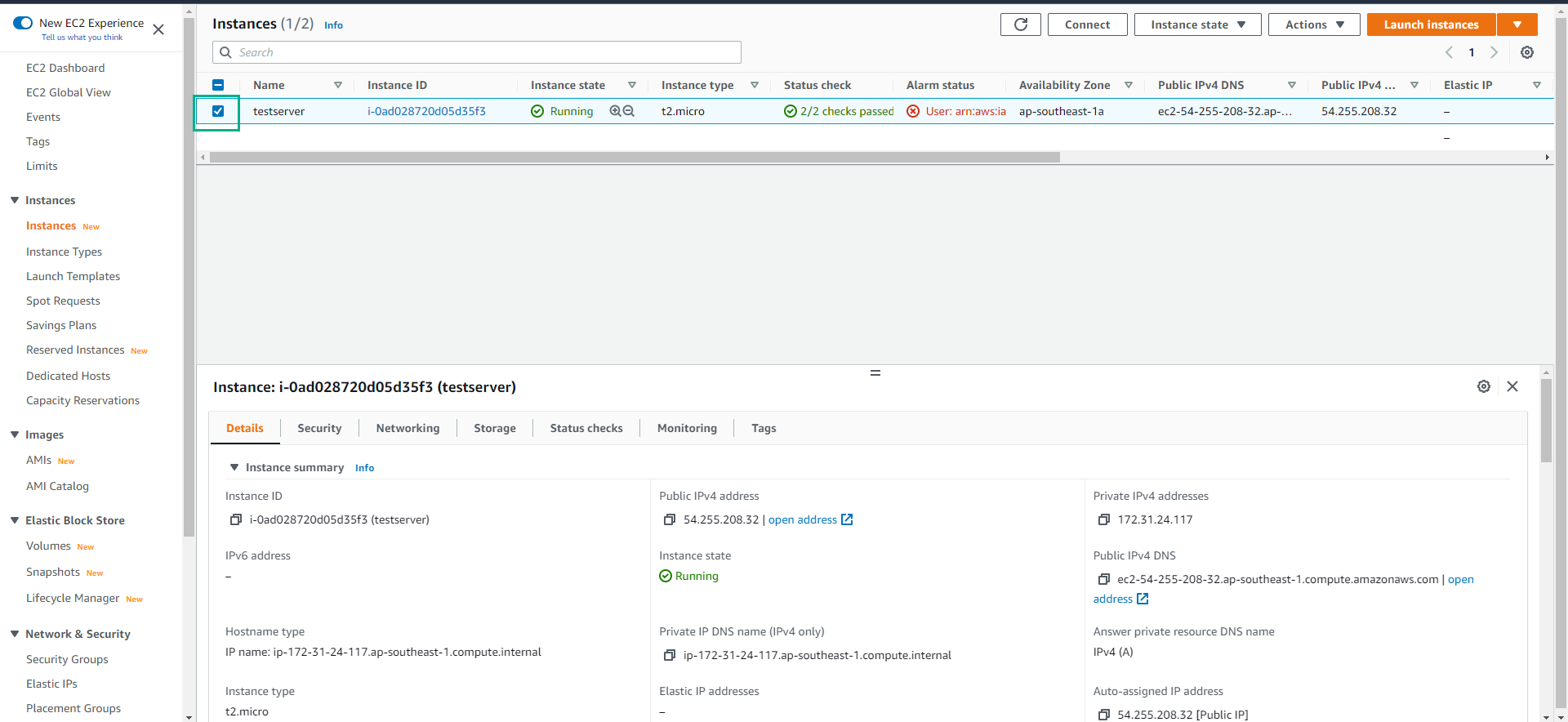
- Click Instance state.
- Click Terminate instance to proceed with deleting the testserver virtual server.

- Click Terminate to confirm.
- Ensure you delete the instance successfully to avoid unexpected costs.

In this step, we have successfully created an EC2 instance with the instance type t3.micro in the Singapore Region. In the next section, we will try to restrict the creation of a specified instance type.